Photo Cinema reproduct lens [Mu-Yichi-Kyo]
Founded in January 2012

Photo Cinema reproduct lens [Mu-Yichi-Kyo]
Founded in January 2012
"Bleach bypass" is one option for representing historical buildings and traditional performing arts.
With the image editing app "Affinity" and the video editing app "DaVinci Resolve" now available for free, anyone with a computer can now apply Luts.
 Since this is video and not a still image, we'll use DaVinci Resolve. This Power Grade (Node tree) can be downloaded at the beginning of the grading page. The final result will look like this.
 At the start, only 01, 04, and 09 are turned ON.
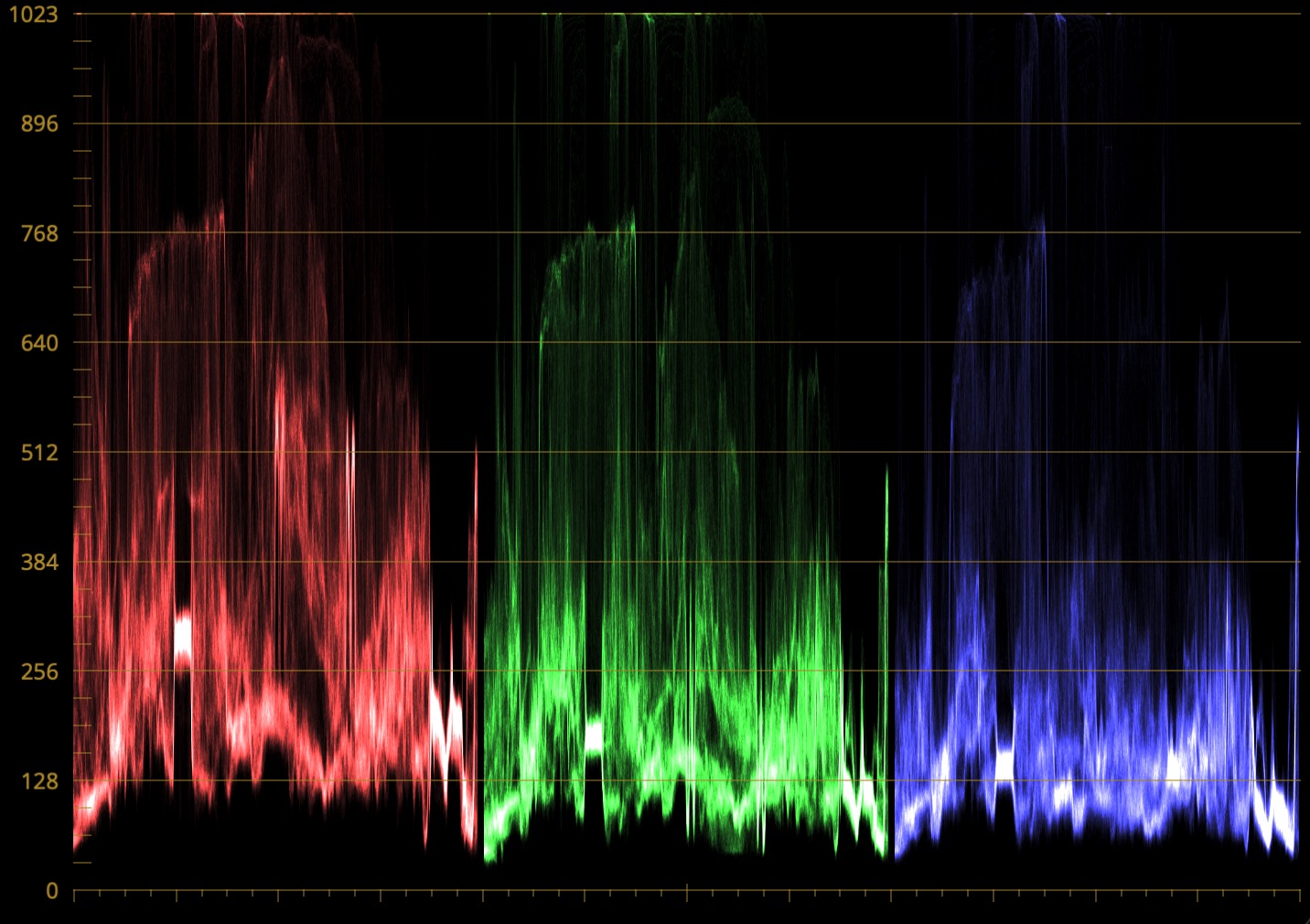 Adjust the exposure to this level using setting 04.
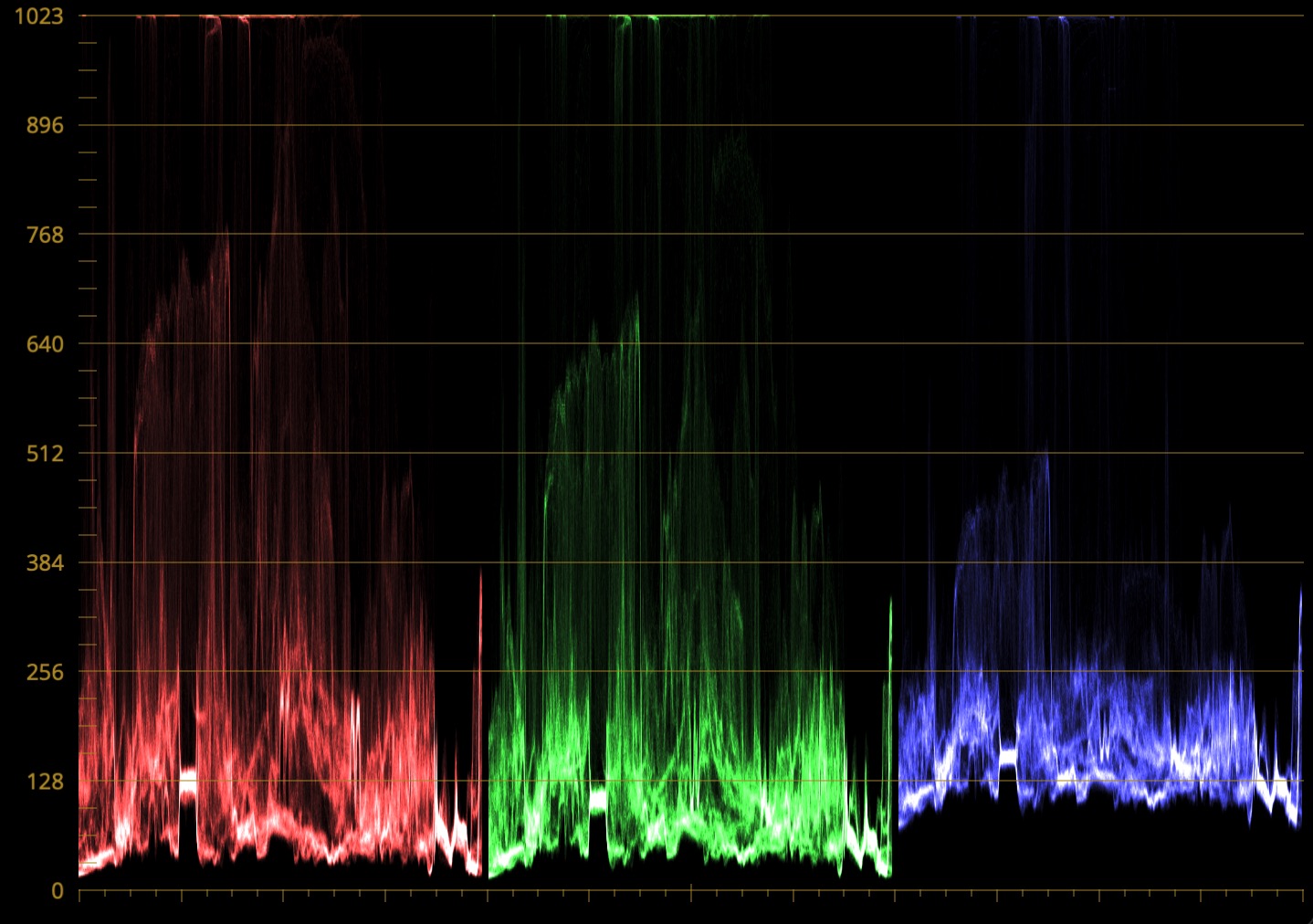 On 08 and install Shimoeda U4, it will become dark like this.
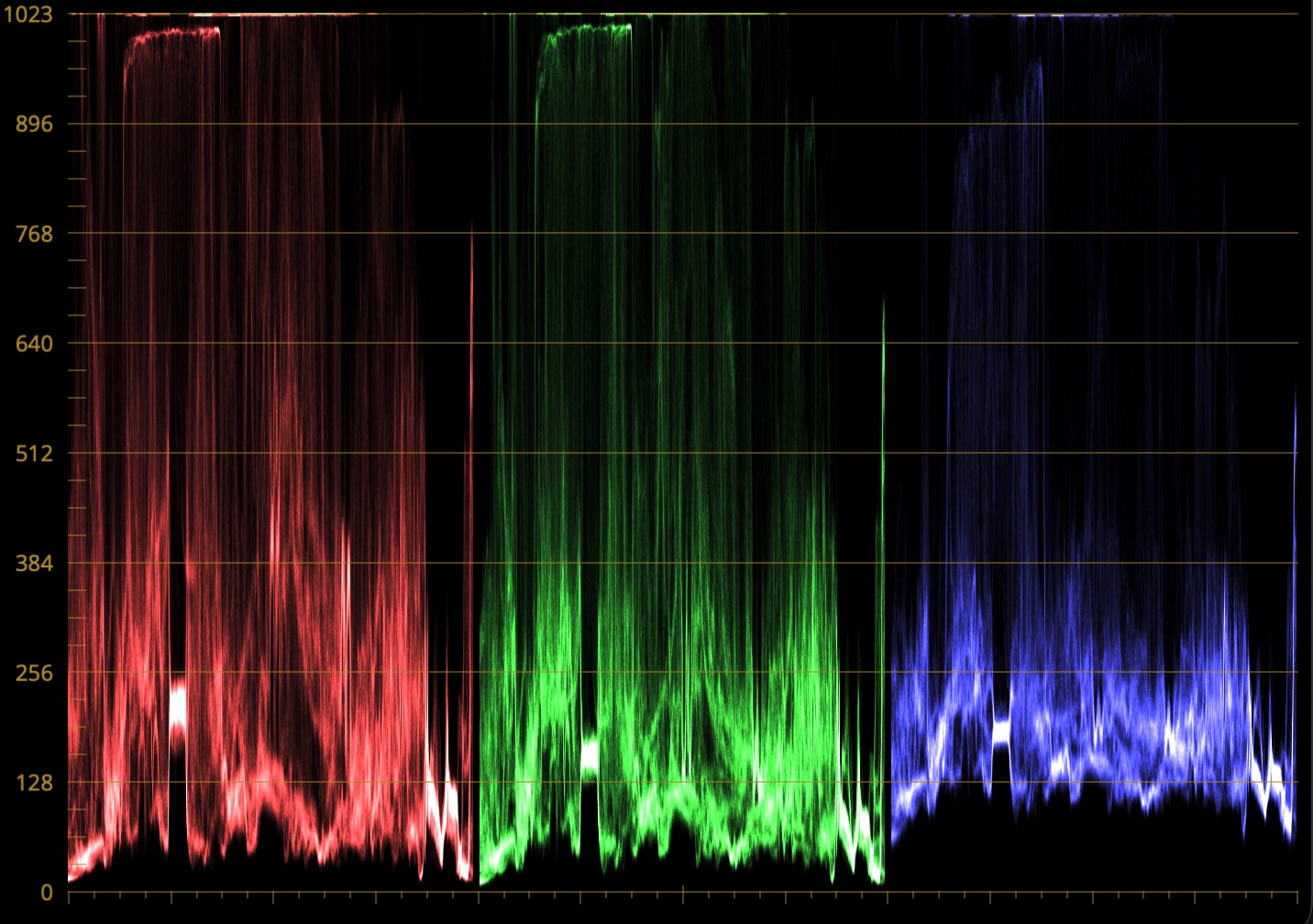 In Bleach bypass, it's okay if it's attached to the ceiling, so make it bright. Added Shimoeda U2 Depth to Node 02.
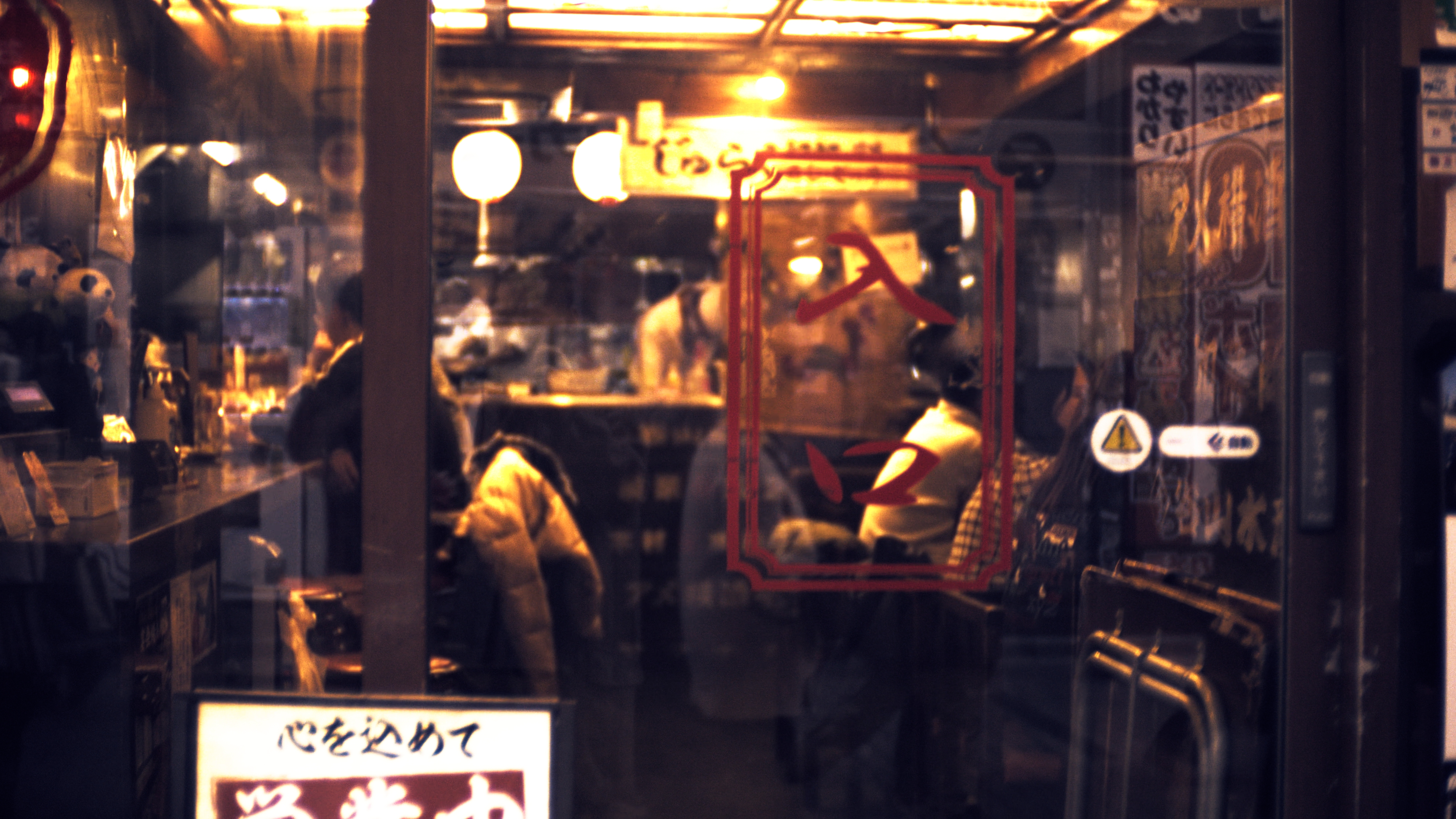 It will look something like this.
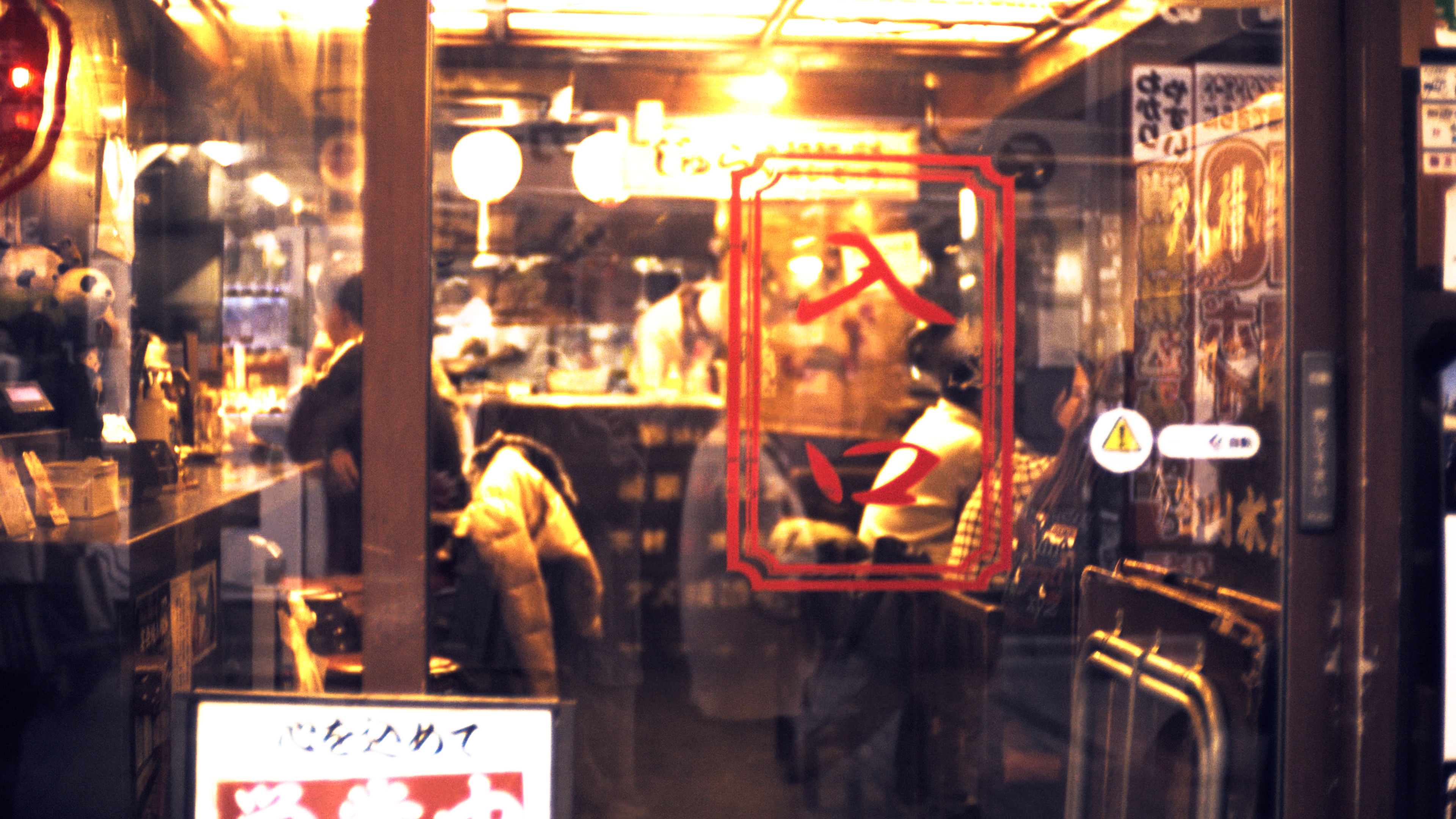 Add "Glow" from "Effects" to Node 07. Set the two sliders at the top, "Brightness Threshold" and "Diffusion," to 0.
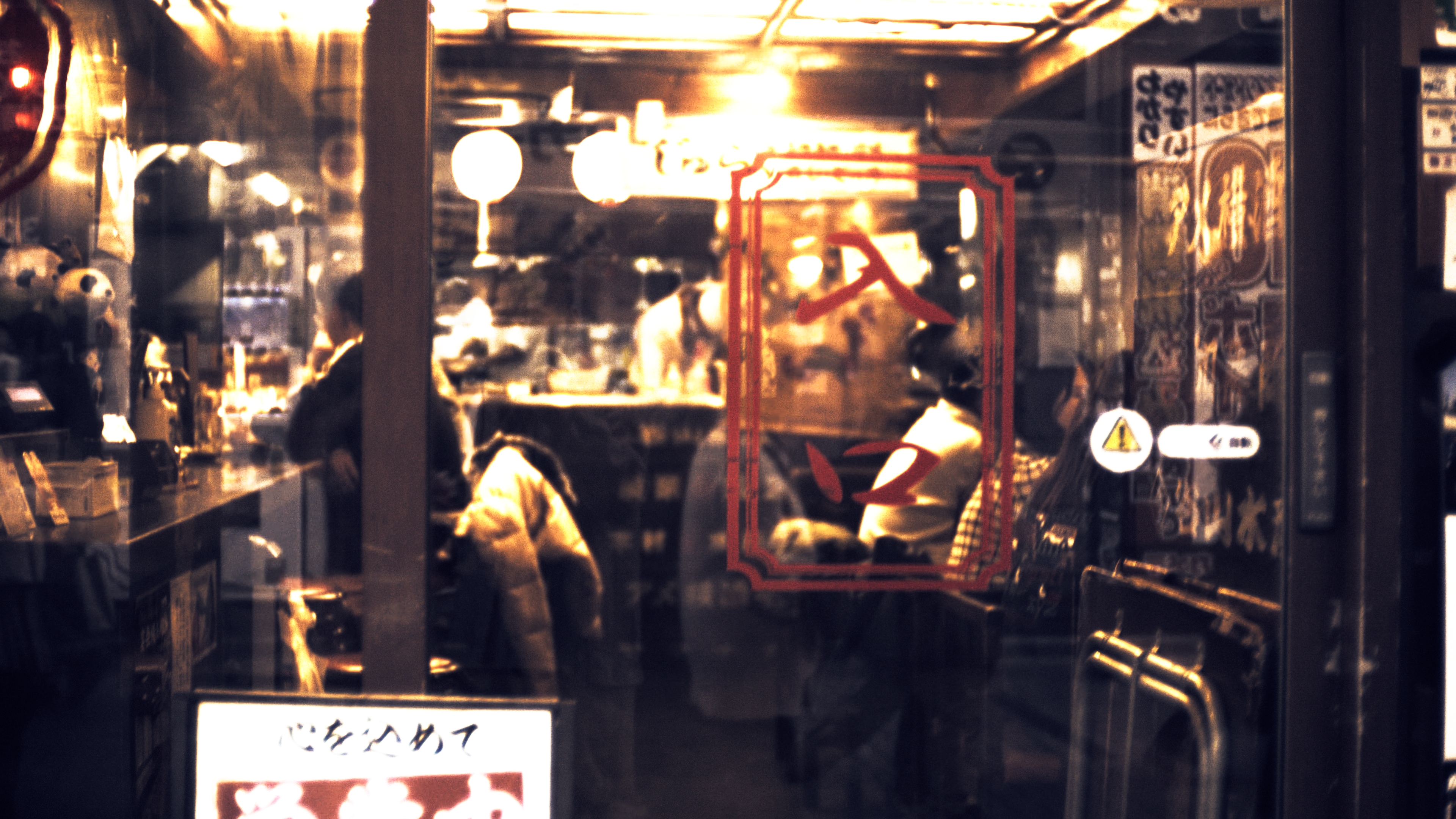 Reset Node05 and 06, and add Shimoeda U1+ and U3 respectively, setting both to 50%.
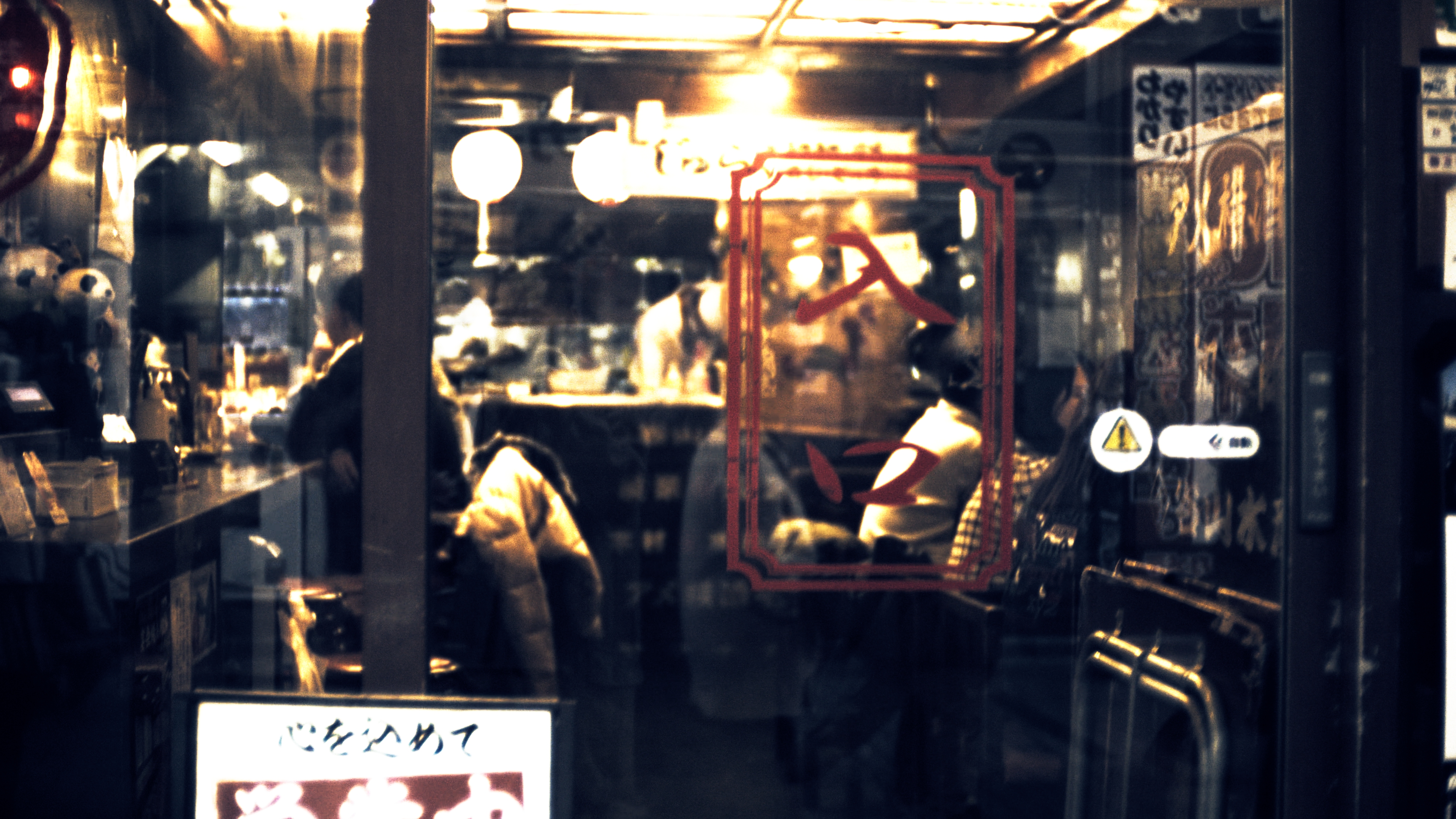 The color was yellowish, so made it a little bluer. Just slightly shifted it towards green using the "Lift" function; the display shows red as -0.01 and the others as 0.00. Even such a small change makes a big difference.
In a still photograph, the lights might be too bright and distracting, but since this video is panning and moving, I think this level of brightness is just right. Also, I think it's fine to stop the process described above midway or omit some of the steps.
Back
